Laptops get stolen, hard drives fail, and ransomware encrypts files before anyone notices. When critical business data lives on endpoints scattered across offices, home setups, and travel bags, a single incident can wipe out weeks of work, or worse. Datto endpoint backup exists to solve exactly this problem: it gives MSPs and IT teams a cloud-based way to protect workstation data without relying on users to remember anything.
But knowing a product exists and understanding how actually to deploy, configure, and recover from it are different things. That’s where this guide comes in. We’ll walk through how Datto’s endpoint backup solution works, what the setup process looks like, and how recovery functions when you need it most, because backup only matters if the restore works.
At TrustedIA, we work with businesses across the UK to build resilient data protection and disaster recovery strategies, taking a solution-agnostic approach to recommend tools that genuinely fit. Here’s what you need to know about Datto’s endpoint offering.
Why Datto Endpoint Backup matters
Endpoints are the weakest link in most data protection strategies. Servers and NAS devices get backed up regularly, but laptops and workstations often fall through the gap. Users work offline, forget to connect to the corporate network, or never think about backup at all. When something goes wrong, they lose data, and so does your business. The problem is not rare or an edge case; it happens to organisations of every size every week.
The endpoint data gap most businesses ignore
Most backup strategies focus on servers, but the data living on endpoints has grown significantly over the last decade. Remote and hybrid work means employees now store critical files, project documents, contracts, and client data directly on their machines rather than on shared drives. If a laptop is lost or stolen, or its drive fails, the data is gone unless something was capturing it continuously in the background.
Ransomware makes this worse. Attackers frequently target endpoint devices because they’re less likely to have enterprise-grade defences. Once ransomware encrypts files on a workstation, the only realistic recovery path is a clean backup taken before the infection happened. Without one, you’re either paying a ransom or accepting permanent data loss.
Endpoint data loss is one of the leading causes of business disruption for SMBs, yet it remains one of the least-addressed areas in most backup strategies.
Why traditional backup methods fall short
USB drives and manual file copies are unreliable and inconsistent by design. They depend entirely on users remembering to do something, and in most organisations, that does not happen reliably enough to count on. Network-attached storage improves things, but it still requires the device to be connected to a specific network, which immediately excludes remote workers.
Traditional image-based backups for endpoints tend to be bulky and slow to restore, and they often require the machine to be online at a scheduled time to run the job. For a distributed workforce spread across different locations, time zones, and connection types, that kind of constraint is a serious operational problem rather than a minor inconvenience. You end up with backup jobs that fail silently and gaps in coverage you only discover after something goes wrong.
Why Datto endpoint backup fills the gap
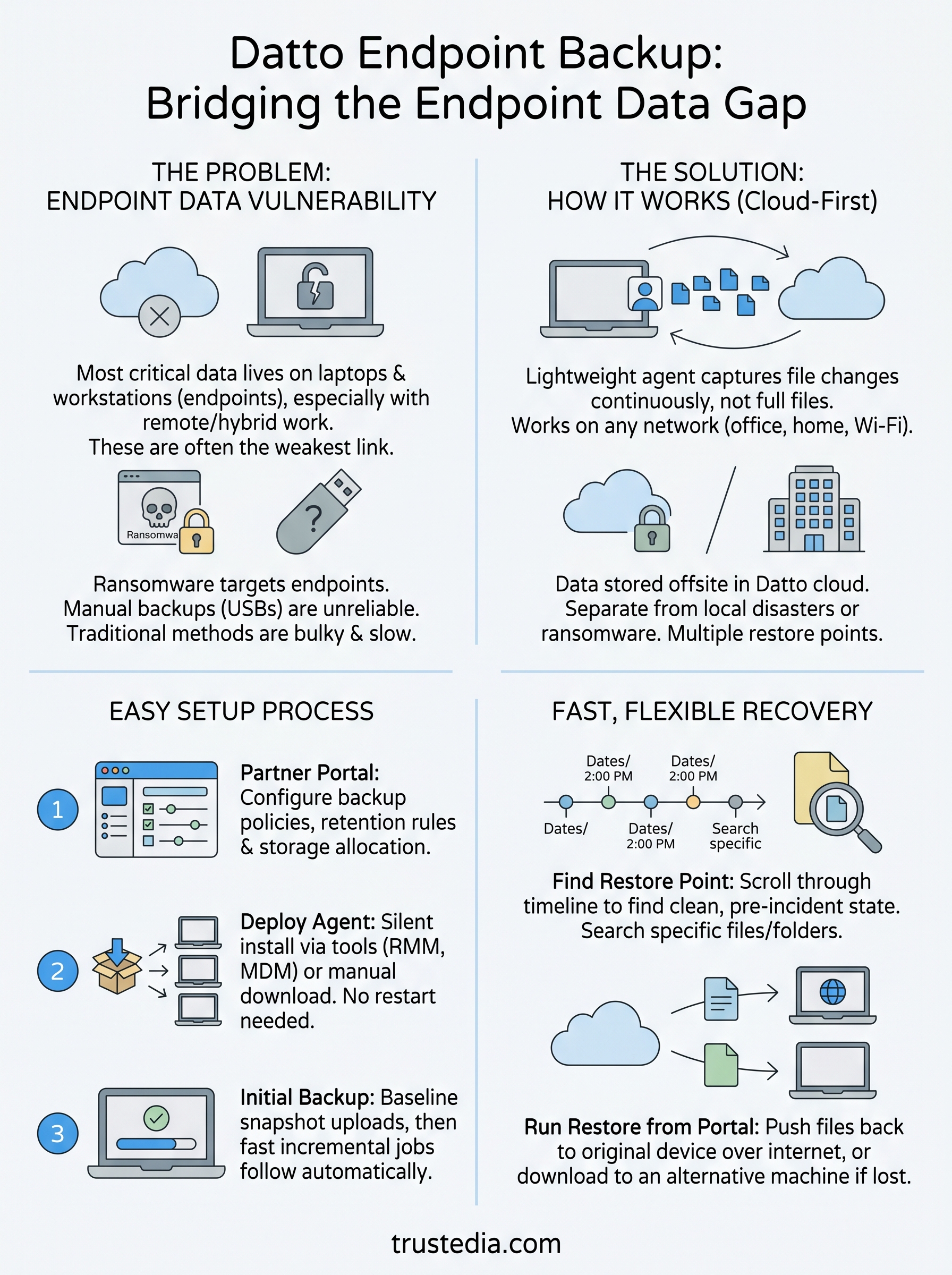
Datto endpoint backup solves these problems by running a lightweight background agent that continuously captures file changes and requires no user input. The backup runs regardless of whether the device is on a corporate network, a home broadband connection, or a public Wi-Fi. That makes it genuinely practical for businesses with remote or hybrid teams, where you cannot control what network the machine is on at any given time.
The cloud-first approach also means your backup data is stored offsite by default, so a local disaster, fire, flood, or ransomware attack that affects your office or on-premises infrastructure does not take the backup copies with it. That separation is what makes the solution actually dependable when a real crisis hits, rather than a theoretical one.
How Datto Endpoint Backup works
At its core, Datto endpoint backup uses a small agent installed on each device to monitor files and send changes to the cloud. The process runs in the background automatically, so no action is required from end users once the agent is deployed. That hands-off design is what makes it practical at scale, especially when you’re managing dozens or hundreds of machines across different locations.
The backup agent and file capture
The agent works by tracking file system changes as they happen rather than waiting for a scheduled full backup to run. When a user saves a document, modifies a spreadsheet, or downloads a client file, the agent captures that change and queues it for upload. Only the changed data blocks are sent to the cloud, not the entire file every time, which keeps bandwidth usage low and upload times fast, even on slower connections.

This continuous, incremental approach means your recovery point is much closer to the moment of incident, rather than the previous night’s scheduled job.
Both Windows and Mac devices are fully supported, and the agent does not require the machine to be on a specific network to function. Whether your staff work from the office, home, or a hotel room, their data is captured without requiring any manual steps.
Cloud storage and data retention
Once captured, backup data is stored in Datto’s cloud infrastructure, physically separated from your own network and premises. That separation matters because a local disaster or ransomware attack cannot reach the off-site backup copies. Your data is retained according to the retention policy you configure, giving you the flexibility to keep multiple restore points across days, weeks, or longer, depending on your compliance needs or recovery objectives.
How to set up Datto Endpoint Backup
Setting up Datto endpoint backup is straightforward, but doing it correctly from the start saves significant time later. The configuration happens primarily through Datto’s partner portal, where MSPs manage devices, policies, and storage settings before a single agent gets deployed.
Getting started in the partner portal
Log in to the Datto partner portal and navigate to the Endpoint Backup section to create your first organisation or assign an existing one. From here, you set your backup policies, which control which file types get captured, how often, and how long retention runs. Think carefully about your retention settings at this stage because changing them later affects how far back you can recover.
Getting your retention policy right before deployment is far easier than adjusting it after hundreds of devices are already reporting in.
You also configure storage allocation per organisation at this point. Datto provisions cloud storage automatically, but setting sensible limits per client or team helps you manage costs and prevents any single device from consuming a disproportionate share.
Deploying the agent to endpoints
Once your policy is in place, download the installer package directly from the portal. You can deploy this manually on individual machines or push it silently using Group Policy, RMM tools, or an MDM solution if you manage a larger fleet. The agent itself is lightweight and, in most cases, installs without requiring a system restart.
After installation, the agent automatically registers with your policy and begins its initial backup, uploading a baseline snapshot of all protected files. Depending on the volume of data and the device’s internet connection, this first run can take several hours. Subsequent incremental jobs are much faster. Monitor the portal dashboard during the initial rollout to confirm each device is reporting successfully and no installations have stalled or failed silently.
How to restore with Datto Endpoint Backup
Restoring data via Datto endpoint backup is handled entirely through the partner portal, so you do not need physical access to the affected machine to start a recovery job. The process is designed to be fast and specific, letting you recover individual files rather than forcing a full device restore every time something goes wrong.
Finding the right restore point
The portal presents a timeline view of all available restore points for each device, so you can scroll back through the history and identify exactly when the file was last in a clean, usable state. This is particularly important after a ransomware incident, when you need to recover from a point predating the infection rather than the most recent snapshot.

Choosing the right restore point before starting the job is the most critical step in any recovery process, get it wrong and you recover corrupted or encrypted data.
You can also search for specific files or folders within the portal rather than browsing through an entire machine snapshot. That targeted search saves significant time when a user has accidentally deleted or overwritten a single document and does not need a full device recovery.
Running the restore
Once you have identified the correct restore point and the specific files you need, you initiate the restore job directly from the portal. Datto pushes the files back to the device over the internet, so the machine only needs an active internet connection, not a connection to any corporate network or VPN.
If the device itself is lost or no longer operational, you can download the recovered files to another machine or location. That flexibility means you are not stuck waiting for a replacement device to arrive before you can access critical files, which keeps downtime to a minimum during an already disruptive situation.
Limitations and troubleshooting
Datto endpoint backup is a strong solution, but it is not without its constraints. Understanding where it falls short before you roll it out means you can plan around those gaps rather than discover them during an incident.
Known limitations to plan around
The most significant limitation is file-level backup rather than full image backup. Datto endpoint backup protects your data files, documents, and folders, but it does not capture the operating system, installed applications, or system configurations. If a machine suffers a complete hardware failure, you will be able to recover your files, but you will still need to rebuild or replace the operating system separately. That means it works best alongside an imaging solution rather than as a replacement for one.
Storage also has boundaries to watch. Large data volumes or devices with extensive local storage can significantly slow the initial backup. If a user stores hundreds of gigabytes of video files or project assets locally, your allocated storage can fill faster than expected. Review per-device data volumes before deployment and adjust your storage allocation and file exclusion rules accordingly.
Excluding large, low-priority file types like video or audio archives from backup policies can reduce storage costs without meaningfully affecting your recovery objectives.
Common issues and fixes
The most frequent issue you will encounter is agents showing as offline or not reporting in the portal. In most cases, this comes down to a firewall or endpoint security tool blocking the agent’s outbound connection. Check that the agent’s required ports and URLs are whitelisted on both your firewall and any endpoint protection software running on the device. Datto publishes the relevant network requirements in its documentation, so cross-reference those against your firewall rules first.
Stalled initial backups are the other common complaint, particularly on devices with large data sets and slower broadband connections. Letting the initial job run during off-hours or over several days is normal. If it stalls completely rather than progressing slowly, reinstalling the agent and restarting the initial backup job usually resolves it.
Next steps
Datto endpoint backup provides a practical, cloud-first way to protect file data on laptops and workstations across your business, including remote devices that traditional backup tools often overlook. When something goes wrong, whether that is a ransomware attack, hardware failure, or accidental deletion, the difference between a short disruption and a serious data loss comes down to whether your backup was actually running and correctly configured.
The key actions to take now are straightforward: review how your current endpoint devices are protected, identify any gaps where user machines are not covered by a reliable backup policy, and assess whether your retention settings match your actual recovery objectives. If you are unsure where to start or want expert guidance on building a backup and disaster recovery strategy that fits your business properly, talk to the team at TrustedIA. We work with businesses across the UK to get these foundations right before an incident forces your hand.